Albedo vs Normal Map: What Each Stores, When You Need Which
Albedo vs Normal Map
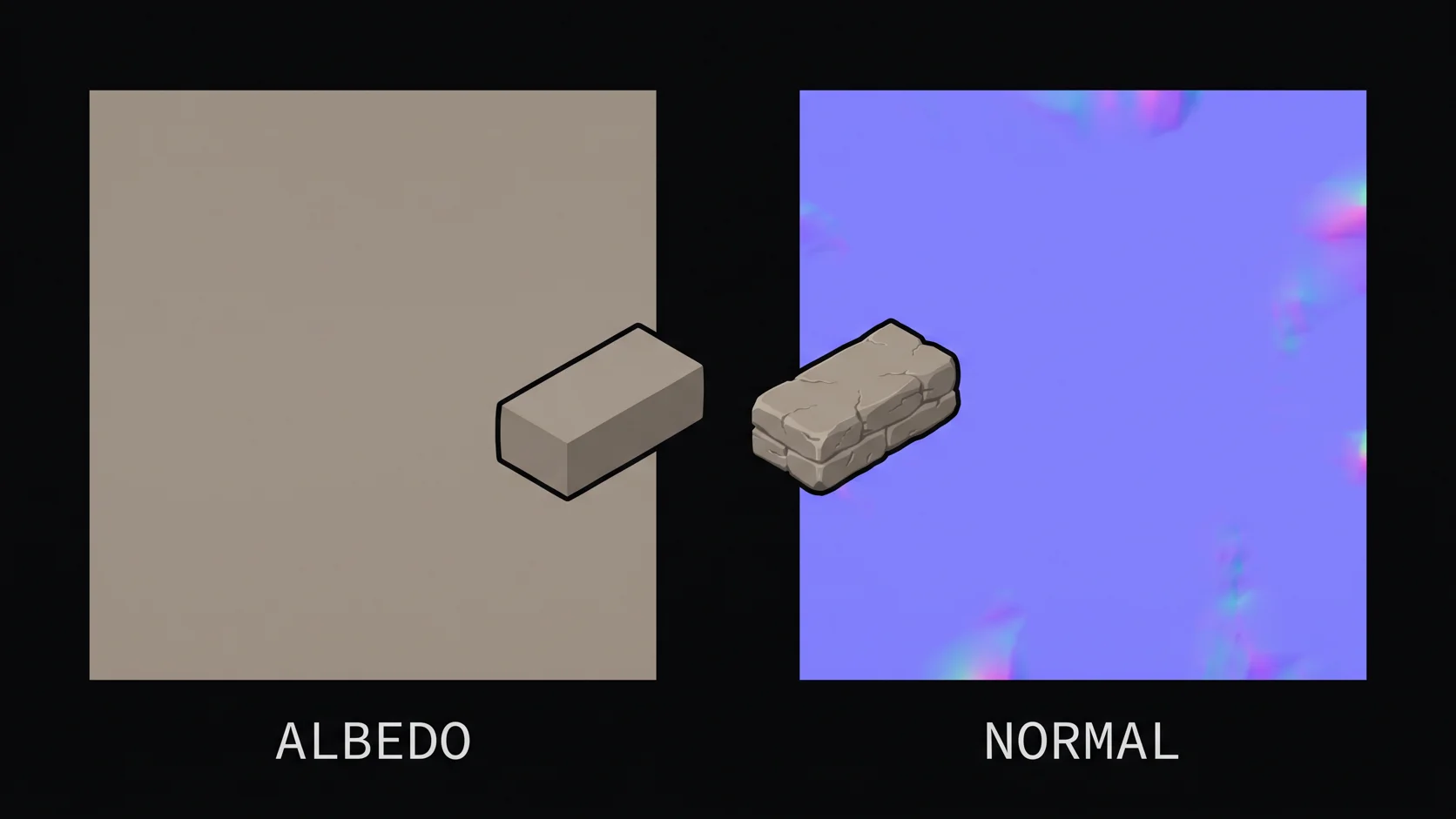
Two textures, one material, endless confusion in Discord threads. The short version: an albedo map stores what color the surface reflects; a normal map stores which way the surface points at a fine scale. Albedo is color data. Normal is geometry data disguised as an image. They are not alternatives — a complete PBR material uses both, and each fixes a different kind of flatness.
That distinction sounds simple, yet the confusion is real and has a legitimate cause: both maps carry no lighting. A clean albedo has shadows stripped out; a normal map never had any to begin with. If you are still building the mental model of PBR from scratch, the what is PBR texturing guide covers the full map family first — this article zooms into the two most mixed-up members.
What an albedo map actually stores
Albedo (Unity calls it Base Color, some tools say Diffuse) is a photo-like RGB image of the surface's true color. "True" is the operative word: diffuse reflectance means the proportion of light the surface bounces back per channel, with every trace of lighting removed — no shadows, no highlights, no ambient occlusion darkening, no color cast from the environment.
That "no lighting" rule is what makes albedo hard to source. Photograph a brick wall and the camera has already baked in the sun angle, the sky's blue fill, and a vignette of contact shadow. That photograph is not an albedo; it is a lit capture. Deriving the true reflectance means removing all of that, which is why photo-sourced textures go through a shadow-removal and highlight-removal pass before they qualify — the exact procedure Adobe's Substance PBR guide walks through for base color.
Why bother with the purity? Because the renderer re-adds lighting at runtime. If your albedo already contains a shadow, the engine paints its own shadow on top and you get double-darkening that no longer matches any real light position. Materials with baked lighting look right in exactly one lighting setup and wrong everywhere else — the defining symptom of a dirty albedo.
What a normal map actually stores
A normal map looks like flat plastic wrap — that unmistakable purple-blue. The color is not decoration: each pixel's RGB channels encode a 3D direction vector in tangent space, scaled so that a surface pointing straight out of the screen encodes as RGB (128, 128, 255) — the flat lavender that dominates these images. Marmoset's PBR theory write-up is the reference most tool docs quietly copy this encoding explanation from.
The shader reads those vectors and uses them in lighting calculations, so light appears to catch scratches, fabric weave, screw heads, and panel gaps that do not exist as polygons. This is the entire trick of normal mapping: geometric detail at the cost of a texture instead of thousands of triangles. A 500-triangle game prop can display machining marks that would otherwise take many thousands of triangles to model.
Two practical consequences follow from the encoding:
- Never edit a normal map in a photo editor. Levels, curves, color grading — all of it corrupts the vector math. A "brightened" normal map is a surface pointing in wrong directions.
- Normal maps add no color of their own. They perturb how existing albedo color reacts to light. If your model looks gray, the fix is never in the normal map.
Side-by-side comparison
| Albedo | Normal | |
|---|---|---|
| Stores | Diffuse reflectance (true color) | Surface direction vectors |
| Data type | Color, RGB | Geometry, RGB-encoded vectors |
| Lighting info | Must be none | None by nature |
| Typical appearance | Natural surface colors | Purple-blue |
| Feeds | Base color of the shader | Lighting perturbation |
| Fix for missing | Model loses all color identity | Surface looks polygon-smooth |
| Editable in photo editor | Yes (carefully) | No — corrupts vector data |
| Generated from | Photos (shadow-stripped), painting, AI | High-poly bake, height conversion, AI |
Why the two get confused
Both maps are "lighting-free" images, so beginners who have internalized the rule "textures must not contain lighting" sometimes over-generalize it into "these two maps must be the same kind of thing." They are not. Albedo is free of lighting because lighting would be duplicated by the renderer; a normal map contains no lighting because it stores direction, not appearance.
The second confusion source: dark albedo regions look like AO, and strong normal-map bumps cast visible shading in-engine, so the perceptual boundary blurs. One stores what the surface is, the other how it faces — a surface can be dark red and bumpy, and those are two independent facts.
There is also a workflow trap: height maps sit between the two. A height map is grayscale geometry data, like a normal map's simpler cousin; converting height to normal (a standard filter in Blender, Photoshop, or xNormal) is legitimate, whereas converting albedo to normal directly is not — you must go through a grayscale height interpretation, and that only works if the albedo's brightness genuinely encodes depth, which it usually does not.
How they work together
Neither map is a fallback for the other. Consider the same scratched metal panel rendered three ways:
- Albedo only: correct colors, mirror-flat surface. Reads as painted plastic at any distance closer than far background.
- Normal only: believable micro-texture reacting to light, but no color — gray surface, no material identity.
- Both: color identity plus light-reactive detail. This is the combination every PBR material ships with, alongside roughness and metallic.
The two also fail differently, which is useful for debugging. If your model looks wrong under moving light, suspect the albedo (baked lighting) or the normal (wrong tangent space, flipped green channel — a DirectX vs OpenGL convention mismatch). If it looks wrong in every light, suspect the albedo color values themselves.
Three practical checks to tell them apart
1. The look test. Purple-blue with a plasticky sheen: normal map. Natural material colors: albedo. Not foolproof — a rust albedo can have purple tones — but I find it right most of the time.
2. The grayscale test. The check I trust most, because it cannot be fooled by a stylized albedo: desaturate the image. An albedo desaturates into varied, meaningful grays (dark rust, bright paint). A normal map desaturates into muddy mid-grays with the purple and blue channels averaging differently — it stops looking like a photo of anything. Any image editor's desaturate answers the question in two seconds.
3. The UV alignment check. In your engine or DCC, apply the texture and compare feature positions against the mesh. Both maps in a set must share identical UVs, pixel for pixel. If the scratch on the normal map lands where the albedo has no corresponding color change, one of the two belongs to a different texture set — a common cause of "the material looks haunted" bugs.
Where AI generation fits
Producing both maps correctly — shadow-stripped albedo, tangent-space-correct normal — is exactly the pair of chores AI texturing automates. Trify3D's AI texturing generates albedo, normal, roughness, and metallic together with the mesh, so the pair arrives pre-aligned in the same UV space. If you generate textures separately from the mesh, the maps you get are still UV-consistent as a set; the check in the previous section is how you verify that before import.
For the manual route — baking normals from a high-poly, deriving albedo from photos — the full texture creation guide has the step-by-step pipeline, and the AI texture generator comparison maps out the tool landscape if you would rather skip the bake entirely.
Frequently Asked Questions
What is the difference between an albedo map and a normal map?
Albedo stores the surface's true color (diffuse reflectance, no lighting). Normal stores surface direction as RGB-encoded vectors used to fake fine geometric detail without polygons.
Why do normal maps look purple and blue?
RGB channels encode tangent-space direction vectors. Flat surface = (128, 128, 255), the flat purple-blue. Color deviations represent bumps and dents.
Can I use an albedo map as a normal map?
No — they store different kinds of data. To get a normal map from color information, convert through a grayscale height pass in Blender or xNormal.
Do albedo and normal maps replace each other or work together?
They work together. A PBR material needs both: albedo for color identity, normal for light-reactive surface detail. Dropping either flattens the material in a different way.
How do I check if a texture is an albedo or a normal map?
Look (purple-blue = normal), desaturate (normal maps stay muddy purple-gray, albedos become meaningful grays), and check UV alignment against the mesh.
Your Path From Here
- Context: the PBR texturing guide places both maps in the full six-map family.
- Tools: the AI texture generator comparison covers generators that output both maps as a matched set.
- Fastest route to a textured model: Trify3D's AI texturing ships mesh and full map set together as one GLB.
Last reviewed: October 2026. The tangent-space conventions and engine slots described here are stable across current Unity, Unreal, and Blender versions.
Run it yourself in Trify3D
Keep reading from this topic
Trellis 2 Complete Guide: From Install to Production Workflow
The complete Trellis 2 guide for 2026: pick an install path (ComfyUI or no local GPU), run image-to-3D, text-to-3D, and multiview workflows, fix common errors, and compare Trellis 2 vs Hunyuan 3D.
TutorialsWhat Is PBR Texturing? The 2026 Plain-English Guide
PBR texturing explained: what PBR stands for, the six core maps, the two workflows, and the mistakes that break PBR materials in Unity and Unreal.
TutorialsHow to Design 3D Print Models: 4 Paths & Rules
Learn how to design 3d print models with four paths, print-ready rules and a tolerance cheat sheet, then turn a photo into a printable model today.