How to Generate Reference Images for 3D
Most 3D modeling guides tell you to "find good reference images." That advice made sense in 2015. Today you can generate a reference image from a sentence, pick the best version, and turn it into a 3D model in the same tool. No Pinterest boards, no stock-photo licenses, no settling for a photo that's almost right.
This is the workflow we use at Trify3D, where the same credit pool runs five image engines and the 3D reconstruction pipeline back to back. I'm on the Trify3D team and work on this pipeline daily. The engine timings below come from our own runtime config field (measured values, not marketing copy), and the prompt and failure tips come from running this workflow on hundreds of test inputs across game props, product shots, and organic subjects. The engine-vs-reconstruction comparison is flagged "to be benchmarked" because we haven't run a controlled study yet. When we have, the table goes in and this note comes out.
Why AI-generated references beat stock hunting
Stock reference images force compromises. The lighting is wrong, the angle is slightly off, the background is busy, or the subject is cropped. You adapt your model to the photo instead of getting the exact reference you need.
Generating the reference flips the relationship. You describe the subject you actually want to model ("a ceramic coffee mug, matte glaze, three-quarter view, soft studio light, plain white background") and the image conforms to your spec. Three advantages that matter for 3D work:
- You control the background. Plain backgrounds reconstruct dramatically better than busy ones.
- You own the rights. No stock-photo license terms to track.
- You can iterate the angle. Don't like the silhouette? Regenerate at a three-quarter view and try again.
The catch: not every image engine produces references that 3D reconstruction handles well. That's where engine choice starts to matter.
The end-to-end workflow
Four steps, one tool.
1. Write the prompt. Lead with the subject, then the background, then the view. "Ceramic coffee mug, matte glaze, front view, plain white background, soft studio light." The background and view clauses are not decoration; they directly control how clean the 3D input will be. Try the AI image generator prompt format if you're new to this.
2. Generate with multiple engines. Run the same prompt through several engines at once. Nano Banana finishes in roughly 20 seconds; GPT Image 2 takes closer to a minute. You're not picking a winner yet, you're building a shortlist. This is the multi-model advantage: one prompt, five outputs, compare side by side.
A trade-off worth naming: running one prompt through five engines costs five times the credits of a single-engine pass. For a throwaway prop you'll model once, that's overkill. Pick one engine and move on. For a hero asset you'll ship, the extra credits buy you a real choice instead of a guess. The pricing page won't tell you this; I will.
3. Pick the best reference. Choose by reconstruction-friendliness, not by which image looks prettiest. The signs, in order of importance: single subject filling most of the frame, plain high-contrast background, even lighting with no harsh shadows, subject fully in frame (nothing cropped at the edges).
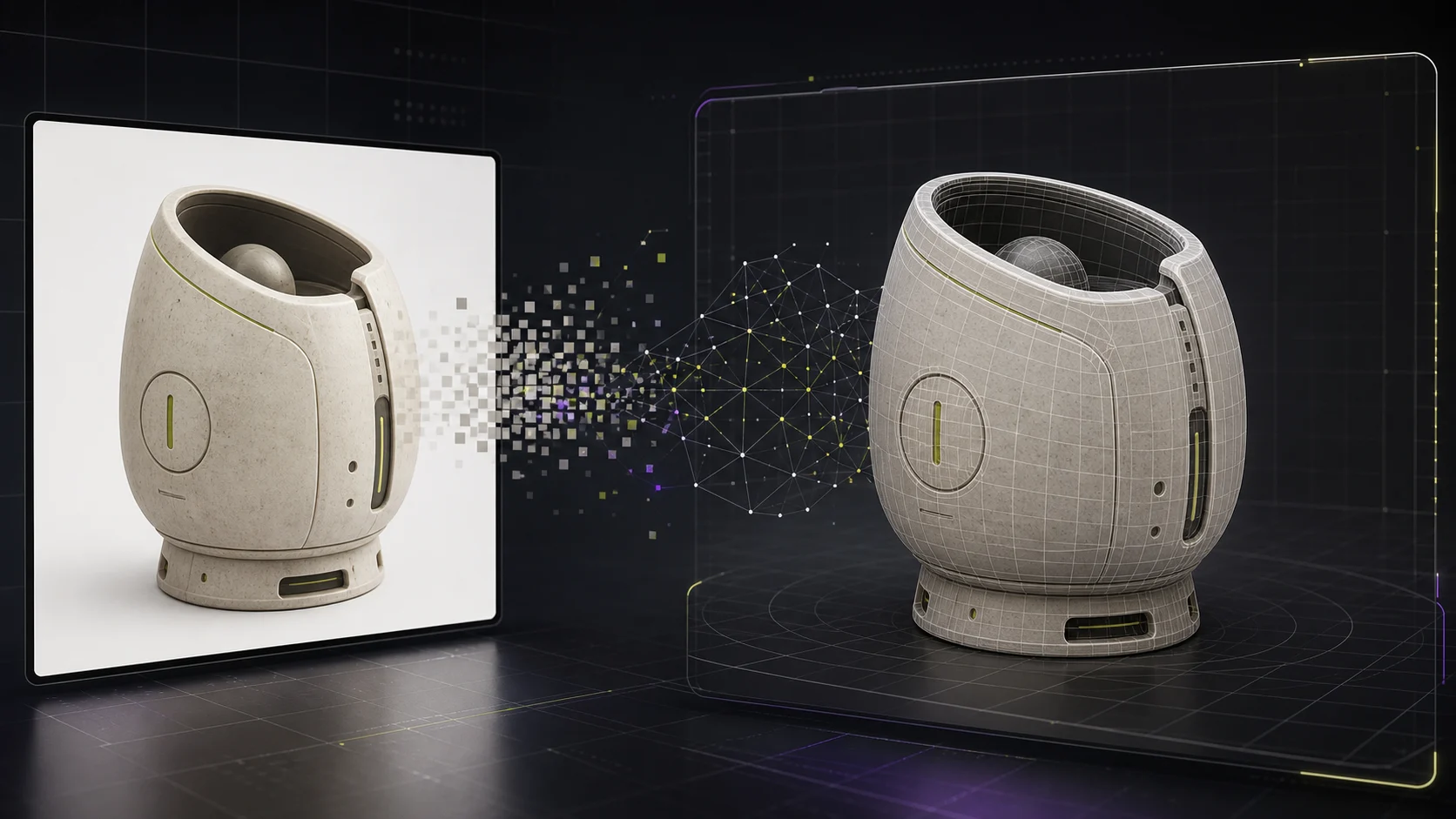
4. Convert to 3D. Feed the chosen image into image-to-3D. Reconstruction runs in the same workflow, no second upload, no second account. Export GLB, glTF, OBJ, or STL depending on where the model lands next. See the export formats reference for which to pick.
Which image engine makes the best 3D reference?
We're benchmarking this properly. The honest answer right now is "it depends on the subject," and I'd rather flag that than hand you a fake ranking.
- Nano Banana (and 2) generate fast, consistent subjects. Good for iteration, sometimes flat lighting.
- Nano Banana Pro leans into texture detail, which helps reconstruction catch surface information.
- GPT Image 1.5 / 2 produce high-fidelity output with strong text rendering, useful when the subject has labels or surface graphics.
A controlled comparison (same prompt across all five engines, each output fed into the same 3D reconstruction, scored on geometry fidelity, texture quality, and back-side completion) is on our to-benchmark list. When it's done, the table goes here. Until then, run the prompt through whichever engines you have credits for and judge the reconstruction, not the source image.
Prompt tips for 3D-friendly references
The prompt decides whether reconstruction succeeds or fails before the 3D engine ever runs. Four rules that hold across engines:
- Name the background. "Plain white background" or "solid dark background." Vague backgrounds produce vague silhouettes.
- One subject, one frame. "A single ceramic mug" beats "a table with mugs." Multiple subjects confuse single-view reconstruction.
- Specify the view. "Front view" or "three-quarter front view." Avoid "dynamic angle"; reconstruction wants a recognizable profile.
- Ask for even light. "Soft studio lighting, no harsh shadows." Shadows read as geometry and wreck the mesh.
Common failures (and how to fix them)
Reconstruction fails in predictable ways. The first time I fed a busy kitchen-counter photo into image-to-3D, the mug came out as a melted lump fused with the countertop. The engine couldn't tell where the subject ended and the background began. Regenerating on a plain background fixed it in one try. Most failures trace back to the reference image, not the 3D engine:
- Melted or fused geometry. Usually a busy background the engine couldn't separate from the subject. Regenerate with a plain background.
- Missing back side. Single-view input has no back information; the engine guesses. If the back matters, provide a second angle or accept an inferred back.
- Crooked or warped base. The subject was tilted or cropped in the reference. Regenerate straight-on, subject fully in frame.
- Lost surface detail. Reference was too smooth or too dark. Add material cues to the prompt ("matte ceramic," "brushed metal") and raise the contrast.
Every one of these is fixable at the reference stage for free, rather than after you've spent credits on a 3D rebuild.
Frequently asked questions
Can I use a Midjourney or AI-generated image as a 3D reference? Yes. AI-generated images work as 3D references as long as they show a single clear subject on a plain background. Generate the image, then feed it into an image-to-3D tool like Trify3D. The reconstruction quality depends more on the image's clarity than on which engine produced it.
What kind of reference image gives the best 3D reconstruction? A single well-lit subject on a plain background, shot from the front, with high contrast between subject and background. Avoid cluttered scenes, heavy shadows, multiple overlapping objects, or images where the subject is cropped at the edges.
Do I need more than one reference image? For single-view image-to-3D, one clean front-facing image is enough to start. A second angle (side or back) helps if your tool supports multi-view reconstruction. The rest of your references are for your own judgment on style and detail, not for the model.
Start generating your reference
Write your prompt, run it across the engines, pick the cleanest output, and convert it to a 3D model, all in Trify3D's image studio. New accounts start with free credits, no card required. If you already have a reference image in hand, go straight to turning it into a 3D model. Still picking an image engine? Our Flux 3 review covers BFL's latest multimodal generator and how to access it.
Run it yourself in Trify3D
Keep reading from this topic
Albedo vs Normal Map: What Each Stores, When You Need Which
Albedo vs normal map explained: what each map stores, why normal maps look purple, how they work together, and three checks to tell them apart.
TutorialsTrellis 2 Complete Guide: From Install to Production Workflow
The complete Trellis 2 guide for 2026: pick an install path (ComfyUI or no local GPU), run image-to-3D, text-to-3D, and multiview workflows, fix common errors, and compare Trellis 2 vs Hunyuan 3D.
TutorialsWhat Is PBR Texturing? The 2026 Plain-English Guide
PBR texturing explained: what PBR stands for, the six core maps, the two workflows, and the mistakes that break PBR materials in Unity and Unreal.