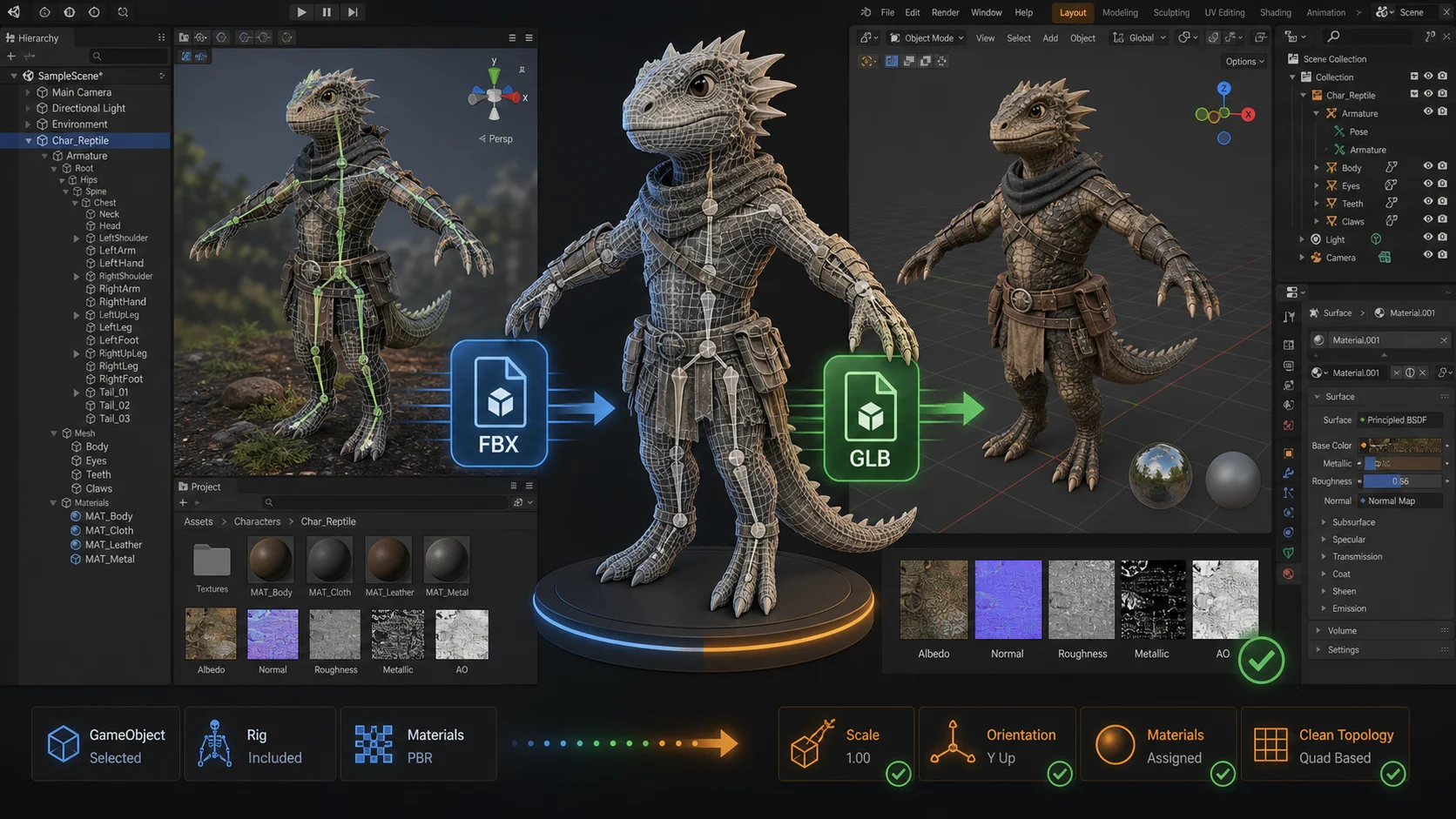
How to Import a 3D Model from Unity to Blender
Moving a 3D model from Unity back into Blender trips people up because Unity has no "Export to Blender" button. It stores meshes inside .fbx or .asset files that Blender can't open directly, and its shader system doesn't match Blender's Principled BSDF. The fix is a single intermediate format: FBX.
This guide walks the full round-trip. By the end you'll know how to push a GameObject out of Unity as an FBX, pull it into Blender with the right import settings, and fix the three things that almost always break: orientation, scale, and textures.
Don't have a model in Unity yet? You can generate a 3D model from a single image, drop the GLB into Unity, then follow this guide whenever you need to bring it back to Blender for editing.
The short answer
Unity and Blender do not share a native file format, so you move data through FBX. Two paths exist, and you should always check the second one first:
- Use the original source file. If the model was imported into Unity from an
.fbx,.obj, or.glb/.gltfyou still have, open that source file directly in Blender. No re-export, no loss. This is always the cleanest option. - Re-export from Unity as FBX with the FBX Exporter. When the model only exists inside Unity (a prefab you assembled, a model from a
.unitypackagewhose source.fbxis missing, or geometry generated at runtime), use Unity's FBX Exporter package to write a new.fbx, then import that into Blender. - Re-export from Unity as glTF/GLB with the glTFast package. When preserving PBR materials matters more than animation fidelity, Unity's official glTFast package (
com.unity.cloud.gltfast) exports a.glbthat Blender imports with materials intact, with no manual texture reconnection.
The practical rule: reach for the source file first; choose glTF when materials are the priority and FBX when bones/animation are the priority; only re-export when you have no source. Every re-export is a translation step, so picking the format that best preserves what you care about saves the most cleanup later.
Before you export: check for the original asset
Open your Unity project's Project window and find the model. Expand the importer in the Inspector:
- If the asset is an
.fbx,.obj,.dae, or.glbfile, the Model tab shows its source path at the top. That file is your original; open it in Blender directly and skip the rest of the Unity-side steps. - If the asset is a
.prefabyou built from parts, or a model locked inside a.unitypackagewith no extractable.fbx, you need the FBX Exporter.
To extract a model that's sitting in a .unitypackage: double-click the .unitypackage to unpack it into your project, then look for the .fbx among the imported files. Most Asset Store characters ship as .fbx; once unpacked, that .fbx is your Blender source.
Install the Unity FBX Exporter
The FBX Exporter is an official Unity package (com.unity.formats.fbx), available from Unity 2017.2 onward.
- Open Window > Package Manager.
- In the top-left dropdown, select Packages: Unity Registry (not "My Assets" or "In Project").
- Search for FBX Exporter.
- Select it and click Install in the bottom-right.
Once installed, the export menu entries appear under GameObject and in the Hierarchy right-click menu. If they don't show up after install, restart the editor. Unity occasionally needs a reload to register the menu items.
Export the model from Unity
- In the Hierarchy window, select the GameObject you want to export. This can be a single mesh, a rigged character, or a parent object containing a whole group.
- Right-click the object (or use the top menu) and choose GameObject > Export To FBX....
- In the export dialog, set the options:
| Option | What to set | Why |
|---|---|---|
| Export Format | Binary | ASCII is human-readable but large and slow. Binary is the default and what Blender expects. |
| Include | Models (add Animations if the object has clips) | Models exports the mesh, bones, and materials. Add Animations to bring action clips along. |
| LOD level | Highest (or the level you want) | Unity can bake a specific LOD. Pick Highest for full geometry. |
| Object Position | Local for a single object, World for a scene fragment | Local keeps the object at its own origin; World preserves placement relative to the scene. |
| Export Unrendered | Off | Skips hidden helpers and editor-only gizmos. |
| Keep Instances | On | Preserves instanced objects as instances rather than flattening duplicates. |
| Convert Units | Off | Unity and Blender both use 1 unit = 1 meter. Converting applies an extra scale factor you then have to undo. |
| Embed Textures | On | Bakes material image files into the FBX so they travel with it. The single most important setting for getting textures into Blender. |
| Compatible Naming | On | Sanitizes material and object names to be cross-application safe. |
- Choose a destination folder and click Export.
Unity writes a .fbx file (and, if Embed Textures is on, packs the image files inside it). That single file is what Blender will read.
Tip: export to a short path with no spaces or special characters for the first test, e.g.
D:\exports\character.fbx. Long Unicode paths occasionally trip the FBX writer on Windows.
Import the FBX into Blender
Blender's built-in FBX importer handles meshes, materials, bones, and animation in one pass.
- Open Blender (a fresh General scene is fine).
- Choose File > Import > FBX (.fbx).
- In the file browser, pick the
.fbxyou exported from Unity. - Before clicking Import FBX, expand the right-hand sidebar to set the import options:
General
- Scale: leave at
1.0. Unity and Blender share the same real-world unit scale, so the model should arrive at the correct size. Only change this if you see a uniform size error after import.
Geometry
- Custom Normals: keep on. This carries Unity's smoothing/normals so the shading matches.
- Vertex Colors: set to sRGB unless your model uses linear vertex colors.
Materials
- Material Name Collision: Make Unique. This ensures each material becomes its own Blender material rather than silently linking to a same-named one in the file.
Armature (only shown for rigged models)
- Ignore Leaf Bones: on. Unity appends a tiny "leaf" bone to the end of every chain for its own purposes; Blender doesn't need them and they clutter the armature.
- Click Import FBX.
The mesh, hierarchy, materials, armature, and any animations land in the Blender viewport in one operation. With Embed Textures enabled on the Unity side, the textures will already be wired into the imported materials.
Fix the three things that break
1. Orientation (Y-up vs Z-up)
Unity is Y-up, Blender is Z-up. The FBX importer converts this automatically by adding a −90° X rotation to the imported root object. You'll see the model look correct in the viewport but carry a non-zero rotation value on the root.
To bake the correction so the transform is clean:
- Select the imported root object in the Outliner.
- Press Ctrl+A.
- Choose All Transforms (or Rotation if scale is fine).
The model keeps its visual orientation and now reads 0,0,0 rotation. Do this once, right after import, and you'll never fight a sideways model again.
2. Scale
Unity and Blender both define 1 unit = 1 meter, so a properly-authored model arrives at the right size. Scale problems come from three places:
- Convert Units left on during Unity export applies a 0.01 factor. Fix it by setting Blender's import Scale to
100, or re-export from Unity with Convert Units off. - The FBX Mesh Scale Factor (legacy). Older Unity versions (pre-2017 FBX Exporter) imported FBX with a default Mesh Scale Factor of 0.01, so a 1-unit mesh in Unity's project was actually 1cm at the source. When that mesh is round-tripped back out, Blender reads a File Scale of 0.01 in the import dialog and the model appears 100x too small. The fix: set Blender's import Scale to
100to cancel the factor, or apply scale with Ctrl+A > Scale after import. Modern Unity (FBX Exporter with Convert Units off) avoids this entirely. - Non-uniform scale baked into the prefab. Select the root and press Ctrl+A > Scale to apply the scale before editing.
To verify size, add a 1m cube (Shift+A > Mesh > Cube) next to the model and compare. A real-world character should stand about 1.6-1.8 units tall.
3. Materials and textures
This is where most of the cleanup happens, because Unity shaders do not map to Blender's Principled BSDF one-to-one. FBX carries texture references and best-effort material values, but Unity's per-texture import settings (compression, normal-map flags, max size) don't travel through the format, which is why textures often arrive as blank images even when Embed Textures is on.
What you get:
- The mesh's UVs always come through intact.
- With Embed Textures on, the image files arrive wired into material slots.
- The material values (color, metallic, roughness) come through as a best-effort Principled BSDF.
What usually needs manual work:
- Re-extract textures if they arrive blank. Unity stores imported textures inside the locked FBX asset. Before exporting, select the FBX in the Project window and use the Inspector's Materials > Extract Textures (and Extract Materials) to write the real image files to disk, and those export cleanly. This is the single most common fix for missing-texture problems reported on the Unity forums.
- Normal map strength: Blender's Normal Map node defaults to strength 1.0, which can look too strong. Drop it to 0.7-1.0 and check the color space is Non-Color on the image.
- ORM vs separate maps: Unity often packs Occlusion/Roughness/Metallic into one ORM texture. In Blender, use a Separate RGB node to split it into the three Principled BSDF slots.
- Emission: emissive materials import but may need the strength value re-entered.
- Custom shaders: anything using a Shader Graph or HLSL in Unity does not transfer. Rebuild it in Blender's Shader Editor from the texture maps.
If your model is PBR-based and you care about materials more than animation, the glTF path below skips almost all of this. glTF stores PBR in a standardized way that Blender imports natively.
For a detailed walkthrough of rebuilding materials, see our guide on how to make textures for a 3D model and apply them to the Principled BSDF.
A modern alternative: export glTF instead of FBX
If your model is PBR-based (Standard shader in Unity, no custom Shader Graph) and you'd rather skip the texture-reconnection work, export glTF / GLB instead of FBX. glTF is the standardized "JPEG of 3D"; it stores PBR materials in a spec both Unity and Blender speak natively, so materials, base color, metallic, roughness, normal, and occlusion maps come through wired up correctly without manual relinking.
Unity now ships an official package for this:
- Install glTFast (
com.unity.cloud.gltfast) from Package Manager. It's an official Unity package that supports import and export, in the Editor and at runtime. - Select your GameObject and export it as a
.glb(binary glTF, single self-contained file). - In Blender, use File > Import > glTF 2.0 (.glb/.gltf) and pick the file.
glTF vs FBX at a glance:
| FBX | glTF / GLB | |
|---|---|---|
| PBR materials | Best-effort, often needs relinking | Native spec, imports cleanly |
| Textures | Need Embed Textures + extract | Embedded by default |
| Bones & animation | Mature, reliable | Supported, but complex rigs can have edge cases |
| Coordinate conversion | Automatic (-90° X) | Automatic (Y-up) |
| Animation takes | First-class | Supported as actions |
Rule of thumb: choose glTF when materials are the priority, FBX when a complex rig or many animation clips are the priority. For a static prop or a character you mainly want to re-texture, glTF saves you the entire materials section above.
Note: glTFast's export is newer than its import and can miss edge-case Unity shader setups. If a material doesn't come through, fall back to FBX with Embed Textures and reconnect by hand.
Common problems and quick fixes
The FBX Exporter menu doesn't appear. The package didn't finish registering. Restart the Unity editor. Still missing? In Package Manager, confirm you're filtered to Unity Registry and that the package shows as Installed; re-install if it shows an error state.
My model imports tiny / huge. Either Convert Units was on during export, or the prefab had a baked scale. Set Blender's import Scale to compensate, or re-export with Convert Units off and apply scale in Unity first.
Textures are pink / missing in Blender. Embed Textures was off during export, or the textures use a format Blender can't read. Re-export with Embed Textures on, or copy the texture files into the same folder as the .fbx and relink them in Blender's Shader Editor.
The model is lying on its side. The Y-up to Z-up conversion wasn't applied. Select the root and press Ctrl+A > Rotation to bake the −90° X correction.
Bones look odd but the mesh still deforms correctly. This is expected. FBX bones are −X aligned and Blender bones are Y aligned; the importer handles skinning, but the visual bone roll can look different. It does not affect deformation; leave it unless you're editing the rig.
Animation doesn't play in Blender. The animation imported as an Action on the armature, not as a playing clip. Open the NLA Editor or the Action dropdown on the armature and assign the imported Action. Each FBX "take" becomes one Action.
Materials look flat / wrong color. The color space or normal map strength is off. Check that color textures are sRGB, data textures (normal, ORM) are Non-Color, and that the normal map strength is around 0.8.
I only have a .unitypackage, no .fbx. Unpack the .unitypackage (double-click it, or import it into an empty Unity project), then look for the .fbx among the extracted assets. Open that .fbx directly in Blender, no export step needed.
When to use each path
| Situation | Best approach |
|---|---|
You have the original .fbx/.obj/.glb | Open the source file in Blender directly. Skip Unity export. |
| Model is a prefab assembled in Unity | Use FBX Exporter (GameObject > Export To FBX). |
| PBR model, materials are the priority | Export glTF/GLB via glTFast; Blender imports PBR natively. |
| Complex rig or many animation clips | Export FBX; animation support is more mature than glTFast export. |
Model came from a .unitypackage | Unpack it, extract the .fbx, open in Blender. |
| Model is generated at runtime / procedural | Can't export directly; capture the mesh via a script or a runtime FBX writer. |
| You built placeholder meshes in Unity and want reference sizes | Export the placeholders as FBX to use as scale/position reference while you build detailed models in Blender. |
| You need to edit and send it back to Unity | Export from Blender as FBX (Limit to: Deform Bones, Y Forward, Z Up, Apply Scalings: FBX All) and re-import into Unity. |
Bring it together with Trify3D
A common round-trip looks like this: generate the model, take it into Unity for game logic, then bring it back to Blender for a retopo, UV pass, or material touch-up. With Trify3D you start from a single image and get a downloadable mesh in minutes. Drop the GLB into Unity, and whenever you need to refine it in Blender, follow the FBX export path above.
If you're earlier in the pipeline, you can also export your model in the right format so that the Unity-to-Blender hop stays lossless, or make clean textures before re-importing into Blender's Principled BSDF.
Frequently asked questions
How do I import a 3D model from Unity to Blender?
Install the Unity FBX Exporter package (Window > Package Manager, Unity Registry, search FBX Exporter), select the GameObject in the Hierarchy, and choose GameObject > Export To FBX. Enable Embed Textures so material images travel with the file. In Blender, use File > Import > FBX (.fbx) and pick the exported .fbx. The mesh, hierarchy, materials, bones, and animations come through in one step.
Why does my model import sideways in Blender?
Unity uses a Y-up coordinate system and Blender uses Z-up. The FBX importer converts this by adding a −90° X rotation to the root. To clean the transform, select the root object and press Ctrl+A > Rotation (or All Transforms) to bake the correction.
Why are my textures missing after importing from Unity?
FBX only carries texture references unless Embed Textures is enabled on export, and Unity shaders don't map to Blender materials automatically. Enable Embed Textures in the Unity export options, then rebuild a Principled BSDF in Blender by reconnecting the albedo, normal, and ORM maps from the imported textures.
Do I need the Unity FBX Exporter package?
Only if the model only exists inside Unity. If you still have the original .fbx, .obj, or .glb that was imported into Unity, open that source file directly in Blender; it's cleaner and skips re-export. The FBX Exporter package (com.unity.formats.fbx, from Unity 2017.2) is for when no source asset exists and the model lives only in the Unity project.
Why is my model the wrong size in Blender?
Unity and Blender both treat one unit as one meter, so real-world scale is usually preserved. Size drift comes from a non-default File Scale on the FBX or from Convert Units being on during export. Check the Scale value in Blender's import dialog (default 1.0) and apply scale with Ctrl+A > Scale if the model is off by a fixed factor.
Do bones and animations come through from Unity to Blender?
Yes. FBX carries armatures, skin weights, and animation takes. Blender imports each FBX take as a separate Action on the armature. Bone orientation differs between formats (FBX bones are −X aligned, Blender bones are Y aligned) but skinning is unaffected. Enable Ignore Leaf Bones to drop the extra end bones Unity appends to each chain.
Should I export FBX or glTF from Unity to Blender?
Choose glTF when materials are the priority and FBX when bones and animation are the priority. glTF (via Unity's official glTFast package, com.unity.cloud.gltfast) stores PBR materials in a standard both apps speak natively, so base color, metallic, roughness, normal, and occlusion maps import wired into Blender without manual relinking. FBX has more mature animation support and is safer for complex rigs with many clips.
Why is my imported model 100x too small in Blender?
Older Unity versions imported FBX with a default Mesh Scale Factor of 0.01, so a 1-unit mesh was actually 1 centimeter at the source. When that mesh is exported back out, Blender reads a File Scale of 0.01 and the model looks 100 times too small. Set Blender's FBX import Scale to 100 to cancel the factor, or apply the scale afterwards with Ctrl+A > Scale. Modern Unity with the FBX Exporter and Convert Units off avoids this entirely.
Can I open the same model in Godot after exporting it from Unity?
Yes. Export the model from Unity as an FBX or GLB, then import that file directly into Godot 4. Godot prefers GLB for imported models because it keeps textures and PBR materials in one self-contained file. Once the model is in Godot, assign materials using Surface Material Overrides. See our guide on changing a 3D model's material in Godot 4 for the full workflow.
What 3D file format works best across Unity, Blender, and game engines?
GLB (binary glTF) is the most portable choice: Unity, Blender, Godot, and Unreal all import it, and it carries PBR materials and embedded textures in one file. FBX is the fallback when you need mature animation or rig support that a specific engine handles better. For a side-by-side comparison of GLB, FBX, and OBJ, see our guide on exporting a 3D model in the right format.
And if Daz Studio is your destination, the same export discipline applies — see how to import 3D models into Daz Studio for units, up-axis, and opacity fixes.
Run it yourself in Trify3D
Keep reading from this topic
Albedo vs Normal Map: What Each Stores, When You Need Which
Albedo vs normal map explained: what each map stores, why normal maps look purple, how they work together, and three checks to tell them apart.
TutorialsTrellis 2 Complete Guide: From Install to Production Workflow
The complete Trellis 2 guide for 2026: pick an install path (ComfyUI or no local GPU), run image-to-3D, text-to-3D, and multiview workflows, fix common errors, and compare Trellis 2 vs Hunyuan 3D.
TutorialsWhat Is PBR Texturing? The 2026 Plain-English Guide
PBR texturing explained: what PBR stands for, the six core maps, the two workflows, and the mistakes that break PBR materials in Unity and Unreal.