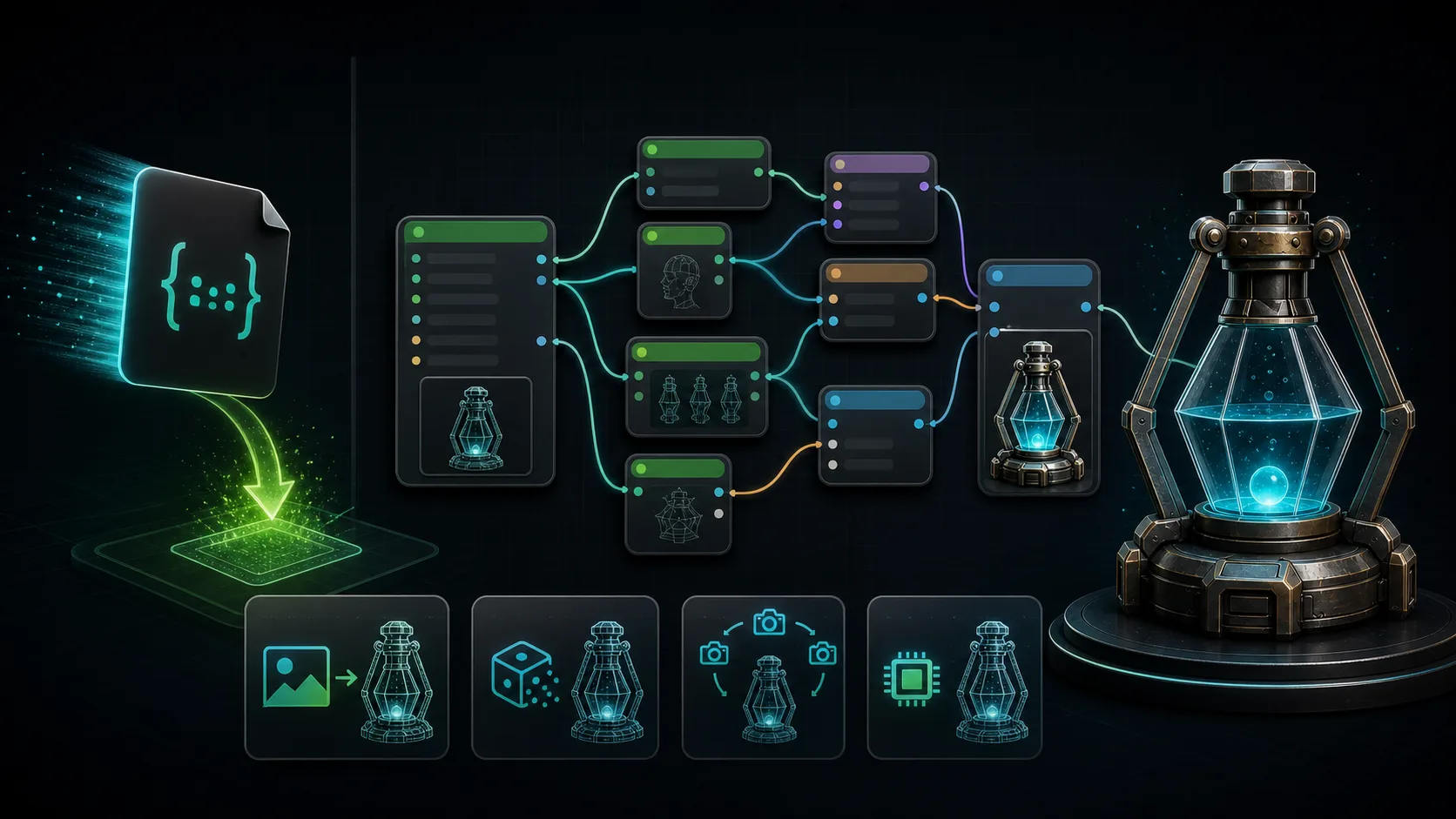
Trellis 2 ComfyUI Workflow Download (Image-to-3D)
Searching "trellis comfyui workflow" usually means you do not want to wire nodes from scratch. You want a .json file you can drag onto the canvas and run. This is that post: where to get ready-made Trellis 2 ComfyUI workflows, what each does, and how to load them.
For the full Trellis 2 setup (install, troubleshooting, node packages), see the Trellis 2 ComfyUI complete guide.
How ComfyUI Workflows Work
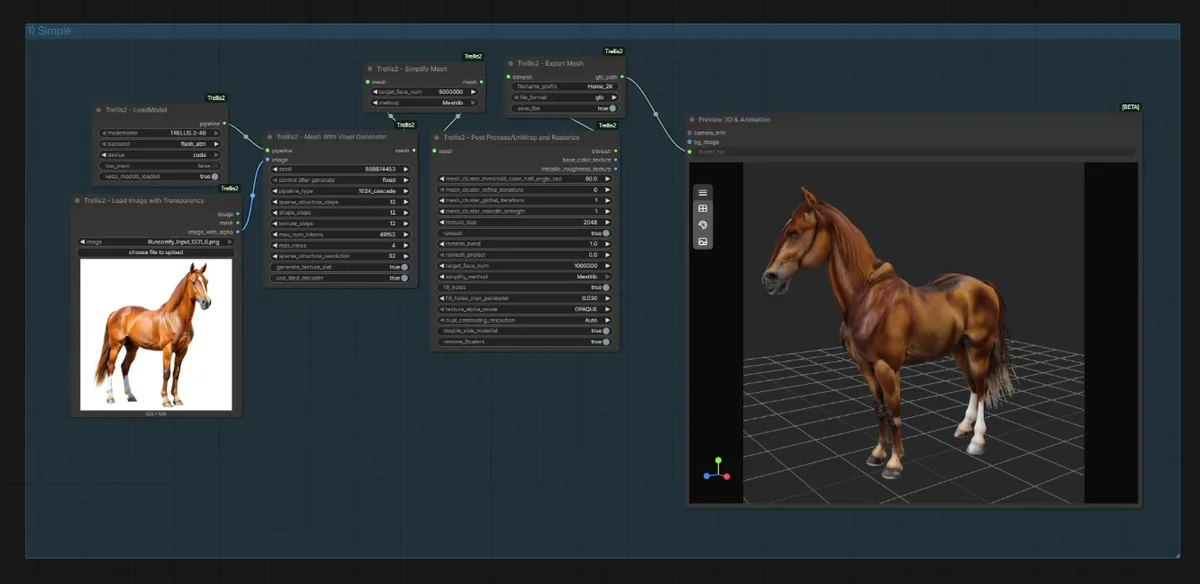
A ComfyUI workflow is a JSON file describing the node graph. Every node, every connection, every parameter. To use one:
- Save the
.json(or PNG with embedded workflow) to your machine. - Drag it onto the ComfyUI canvas.
- ComfyUI reconstructs the node graph.
- Fix any missing nodes (install via Manager) and missing models (download paths shown in red).
- Click Queue Prompt.
The hard part is never loading the workflow. It is resolving the red (missing) nodes and models. This post covers both.
Where to Find Trellis 2 Workflows
| Source | What you get | Link |
|---|---|---|
| visualbruno repo | Reference workflows in /workflows | GitHub |
| PozzettiAndrea repo | Example workflows | GitHub |
| RunComfy | Curated, documented workflows (image-to-3D, remesh, PBR) | runcomfy.com |
| Patreon creators | Premium, refined workflows (FaithC, UltraShape combos) | Various |
Start with the repo's bundled workflows. They match your installed node version and are the least likely to have missing-node errors.
Workflow 1: Basic Image to 3D
The starter workflow. Three nodes:
Load Image→TRELLIS Image to 3D→TRELLIS Export
What it does: single image in, GLB mesh out. Best for: first run, verifying your install works. Resolution: start at 512, bump to 1024 once it runs.
Find it in the visualbruno repo's /workflows folder.
Workflow 2: Image to 3D with Remesh + PBR
The production workflow. Adds mesh refinement and proper PBR texturing. This is what produces shippable assets, not rough prototypes.
Nodes: Load Image → Image to 3D → Mesh Refiner (e.g. FaithC) → Apply PBR → Export GLB
RunComfy documents this exact pipeline in detail, image-to-3D, refinement, multi-view, low-poly, and PBR texturing in one workflow. It is the most complete free reference.
Workflow 3: Text to 3D
Prompt-driven generation. Uses a text encoder instead of a loaded image.
Nodes: Text Encode → TRELLIS Text to 3D → Apply PBR → Export
Best for: when you have no source image and want to generate from a description. The if-ai package leans into this path.
Workflow 4: Multiview
The 2026 quality upgrade. A front-end generates 4-6 camera angles from one image, then feeds them into the standard pipeline for a far cleaner mesh.
Best for: characters, vehicles, complex organic shapes where single-angle produces holes.
See the dedicated Trellis 2 Multiview Workflow Tutorial.
Workflow 5: Low VRAM GGUF
For 8GB cards. Uses a quantized GGUF model and reduced resolution.
Settings:
- Load GGUF model (Q4/Q5) instead of fp16
- Resolution: 512
- Low VRAM checkbox: enabled
- Disable remesh if not needed
Performance: ~3-6 minutes per mesh on RTX 3060 8GB.
Resolving Missing Nodes (red errors)
After loading a workflow, nodes may show red, meaning the custom node is not installed.
Fix: click the red node → ComfyUI shows the missing package → install via Manager → restart. Common missing nodes with Trellis 2 workflows:
- Trellis nodes themselves → install the visualbruno package
- FaithC refiner → search Manager for "FaithC"
- UltraShape → search Manager for "UltraShape"
Resolving Missing Models
Red model loaders mean the weight file is not in your models/ folder.
Trellis 2 model location: ComfyUI/models/trellis2/ckpts/
Download from microsoft/TRELLIS.2-4B. For GGUF, look for community-quantized versions (Q4/Q5). If you hit a HuggingFace 404 on config files, manually place the .json files next to the .safetensors. See the RTX 50 install guide.
Choosing a Workflow
| You want… | Workflow |
|---|---|
| Verify install works | Basic Image to 3D |
| Production-ready asset | Image to 3D + Remesh + PBR |
| Generate from text | Text to 3D |
| Best quality on complex subjects | Multiview |
| Run on 8GB GPU | Low VRAM GGUF |
What's Inside a Trellis 2 Workflow JSON
If you want to tweak a downloaded workflow rather than run it as-is, it helps to know what the JSON actually controls. A Trellis 2 image-to-3D workflow has a few parameter clusters worth understanding:
Input conditioning: How the source image is preprocessed before generation. A good workflow includes background removal and normalization. If your output looks warped, the input conditioning is the first place to look.
Generation parameters:
- Resolution: 512 (fast, rough), 1024 (balanced), 2048 (slow, production). The single biggest lever on quality and time.
- Guidance scale: How tightly the model follows the input. Higher is more faithful but can over-smooth. 7 to 9 is the common range.
- Steps: Sampling iterations. More steps, more detail, more time. 30 to 50 is typical.
Post-processing: Remesh, mesh refinement (FaithC, UltraShape), and PBR application. These are what separate a raw generation from a shippable mesh. A workflow without a refiner stage produces rougher output faster.
Export: Format (GLB/OBJ), texture packing, polycount target. For game engines, GLB with baked PBR is the default.
When you download a workflow, open it and check these clusters before running. A workflow labeled "fast" probably skips the refiner and runs at 512. One labeled "production" likely has remesh and runs at 1024 or higher.
Tuning for Quality vs Speed
Most downloaded workflows are balanced defaults. Here is how to nudge them in either direction.
For speed (prototyping, iteration):
- Drop resolution to 512
- Reduce steps to 25 to 30
- Disable remesh and refiner stages
- Use GGUF quantized model
For quality (hero assets, final output):
- Raise resolution to 1024 or 2048
- Increase steps to 50
- Enable mesh refiner (FaithC or UltraShape)
- Keep PBR texturing on
- Use the full fp16 model if VRAM allows
The same workflow JSON can serve both by toggling a few nodes. Save two versions (a "draft" and a "final") once you find settings you like.
Frequently Asked Questions
Where do I download Trellis 2 ComfyUI workflows?
From the node package repos (visualbruno, PozzettiAndrea) in their /workflows folders, from RunComfy's curated library, or from Patreon creators selling refined workflows. The repo-bundled workflows are the most reliable starting point.
How do I load a ComfyUI workflow?
Drag the .json file (or a PNG with embedded workflow) onto the ComfyUI canvas. Resolve any red nodes via Manager and red models by downloading to models/trellis2/ckpts/.
Which workflow is best for low VRAM?
The Low VRAM GGUF workflow, uses a Q4/Q5 quantized model, 512 resolution, and disables heavy post-processing. Runs on 8GB cards.
Why are nodes red after loading a workflow?
The custom node package is not installed. Click the red node to see the missing package, install it via Manager, and restart ComfyUI.
Next Steps
- Install a node package first, workflows need the nodes.
- Download a workflow from the repo's
/workflowsfolder. - Resolve red nodes/models, then run.
Last reviewed: June 2026. Community workflows update frequently, prefer repo-bundled versions that match your installed node version.
Run it yourself in Trify3D
Keep reading from this topic
How to Use Blender for 3D Modeling (Beginner's Guide 2026)
Learn how to use Blender for 3D modeling step by step: first model, essential hotkeys, export formats, and when the AI shortcut beats manual modeling.
TutorialsComfyUI 3D Models: Best AI Models & VRAM Guide
Generate 3D models in ComfyUI with Hunyuan3D 2.0 & TRELLIS.2. Compare workflows, VRAM needs, and export to Blender or STL. Try free online tool.
TutorialsHow to Make STL Files: 4 Ways, From Tinkercad to AI
Learn how to make an STL file four ways: free browser tools, parametric CAD, Blender sculpting, and AI image-to-3D. Includes export settings, print-readiness checks, and the exact tolerance values that matter.